
 EN
 NL
 DE
 IT
 FR
 Think differently, think refurbished.
Dock not detecting monitors? How to fix your docking station
Written on 5 November 2026
In short
Start with the quick causes: power to the dock, the input selected on each monitor, and cables pushed fully home. Then make sure the laptop is plugged into a USB-C port that carries video, select Detect in the Windows display settings, and install the latest dock firmware and laptop drivers from the manufacturer. Work through them in that order, starting with the quickest.
Contents
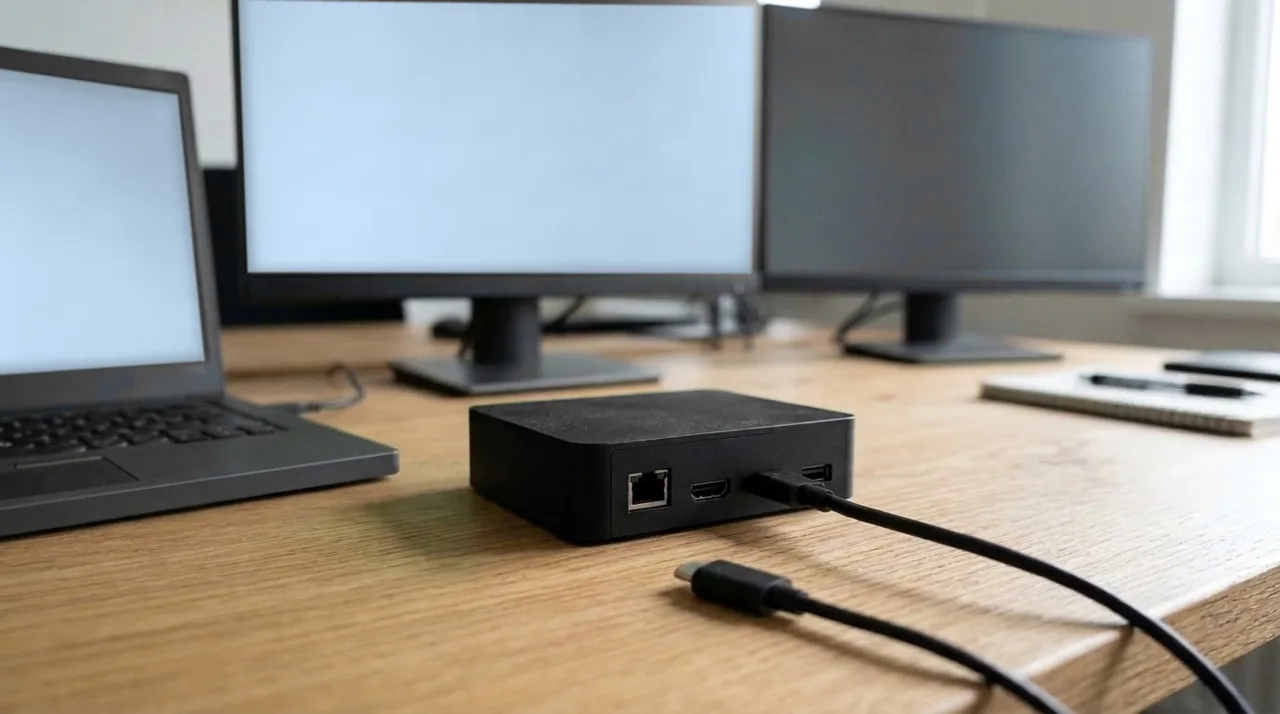
Neither monitor detected: no signal on both screens
Look at the dock before the laptop. A dock with its own power supply passes nothing on without mains power. Check that the power light is on.
Next, the monitors. A monitor searching for a signal on HDMI while the cable sits in DisplayPort stays black, so set the input with the button on the monitor itself.
Then the port on the laptop. A USB-C port that only carries data will not drive a screen, even through a dock. Use the port marked with a DisplayPort symbol or a lightning bolt, or check the laptop's specification sheet to see which one carries video.
- Unplug the dock cable from the laptop, wait ten seconds and plug it back in.
- Restart the laptop with the dock connected.
- Try the laptop on its own: if a monitor works with a cable straight into the laptop, the screen and cable are fine and the dock connection is the place to look.
The docking station detects one monitor but not the second
This is often the laptop rather than the dock. Its graphics chip sets how many external displays it can run at once, and the manufacturer lists that number in the specification. If it says one or two, a dock with three outputs will not change it.
If the laptop should manage both, swap the two cables between the monitors. When the fault moves with the cable, replace the cable; when it stays with the same output on the dock, try a different output, for example DisplayPort instead of HDMI.
In Windows, go to Settings, System, Display and select Detect under Multiple displays. Press Windows key + P and make sure Extend is selected, not PC screen only.
Monitors not detected after an update
A firmware, BIOS or Windows update that changes how the laptop talks to the dock can leave the screens dark; HP's support community has several threads about the USB-C Dock G5 doing this after a firmware update. The first step is to bring both sides up to date.
Go to the support page for your laptop model on the manufacturer's site and install the latest BIOS and graphics driver. Then look up the support page for the dock model and install its firmware, if there is a newer version. Follow the order and the instructions on those pages.
Monitors go off when you close the laptop lid
Windows laptops are often set to sleep when the lid shuts, and the external screens go dark with them. In the Windows power settings you can choose what closing the lid does when the laptop is plugged in. Set it so the laptop stays on, and connect a keyboard and mouse to the dock so you can still work with the lid closed.
The docking station keeps disconnecting
Screens that drop out and come back are usually down to the connection between laptop and dock. Use the dock's own cable, plug it straight into the laptop instead of through an adapter or extension, and update the dock firmware as described above.
A dock that cannot supply the power your laptop asks for can also cause trouble under load. Our guide to a laptop not charging through the docking station explains how to compare the wattage of dock and laptop.
When the docking station itself is at fault
If none of these steps helps and the dock also fails with a second laptop, the dock itself is the likely cause. A replacement does not have to be new: every refurbished dock we sell is tested and comes with a two-year warranty. The HP USB-C Dock G5 and the Dell WD19S connect by USB-C, the HP Thunderbolt 120W G4 and the Lenovo 40AN by Thunderbolt, and all four have two DisplayPort outputs.
Frequently asked questions
Why is my docking station not detecting my monitors?
Check the simple things first: mains power to the dock, the input selected on the monitor, and whether the laptop is plugged into a USB-C port that carries video. Then select Detect in Settings, System, Display, and update the dock firmware and the laptop's drivers.
Why does my monitor say no signal when it is connected to the docking station?
The monitor is getting no picture from the dock. Check that the monitor is set to the input the cable is in, that the dock has mains power, that the laptop is awake and that the dock is plugged into a laptop port that carries video. Then try the cable directly on the laptop.
How do I reset my docking station?
Disconnect it from the laptop and from mains power, wait a minute, then plug in the power first and the laptop second. The manual or support page of your dock model describes any further reset the manufacturer offers.
Why does only one monitor work through my dock?
The laptop may support fewer external displays than the dock has outputs; its specification sheet tells you how many. If it should support two, swap the cables and try another output on the dock to find out whether a cable or a port is at fault.
What should I do if my monitors stopped working after an update?
Install the latest BIOS and graphics driver for your laptop and the latest firmware for your dock, both from the manufacturers' support pages, and follow the installation steps given there.
How do I keep my external monitors on with the laptop lid closed?
Change what closing the lid does in the Windows power settings, so the laptop stays on while it is plugged in. Connect a keyboard and mouse to the dock to work with the lid shut.
About the Author
Curious about the author behind this article?

Angelo van Cleef is a senior developer and IT specialist with over 23 years of experience in IT, focusing on development and marketing. Previously, he worked at large companies on long-term projects that spanned several years. In his spare time, Angelo enjoys fitness, hiking, and exploring new world cuisines.
We value your privacy
You decide which cookies we may use
We and our partners use cookies to keep the site running smoothly, understand how it's used, and show you offers that match your interests. We need your permission for some of these.
- A faster, smoother experience on dsl-tech.nl
- Offers and products that match your interests
- You can change your choice at any time
We never sell your data. Read our Privacy policy for more information.