
 EN
 NL
 DE
 IT
 FR
 Think differently, think refurbished.
How to connect two monitors to a laptop, even with one HDMI port
Written on 5 November 2026
In short
Plug one monitor into the HDMI port and the other into a USB-C or Thunderbolt port that carries video, or connect both monitors to a docking station and run a single cable to the laptop. Then press Windows key + P and choose Extend, so each screen gets its own desktop. An HDMI port on its own only gives you one extra screen.
Contents
- Why one HDMI port is not enough on its own
- Check your USB-C port before you buy a cable
- Two monitors without a docking station
- Connecting both monitors through a docking station
- Dual monitor setup in the Windows 11 display settings
- If the second monitor is not detected
- Docking stations for dual monitors
- Picking one
- Frequently asked questions
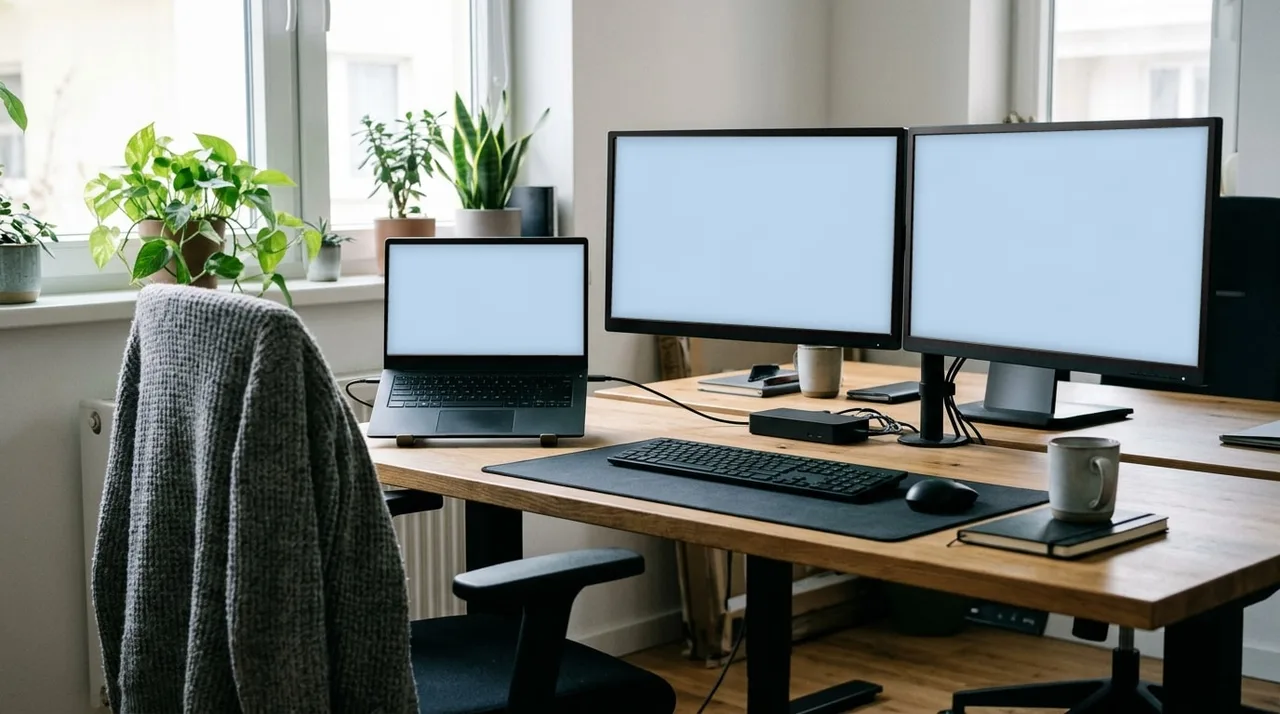
Why one HDMI port is not enough on its own
An HDMI port sends out one picture. Put a splitter on it and both monitors show exactly the same thing, which is fine for a presentation and no help at all if you want your inbox on one screen and a spreadsheet on the other.
The second picture has to come from somewhere else: another video port on the laptop, or a docking station that takes its signal from the USB-C or Thunderbolt port.
Check your USB-C port before you buy a cable
Most business laptops from recent years have at least one USB-C port, but not all of them carry video. To drive a monitor, the port has to support DisplayPort Alt Mode or Thunderbolt. A small DisplayPort symbol or a lightning bolt next to the port is the usual sign; if there is no marking, look up the specification sheet for your exact model. Our guide to the types of USB ports explains what each symbol means.
The number of ports does not decide how many screens you can use. The laptop's graphics chip does, and the manufacturer lists the number of external displays it supports in the specification, usually under graphics or display.
Two monitors without a docking station
If the USB-C port carries video, run the first monitor from HDMI and the second from a USB-C to DisplayPort or USB-C to HDMI cable, whichever matches the input on the monitor. It is cheap and it works.
The drawback shows up every morning. Two video cables and a charger go into the laptop when you sit down, and come out again when you leave. On a desk you use every day, that gets old quickly.
Connecting both monitors through a docking station
A docking station stays on the desk with both monitors, the keyboard, the mouse and the network cable plugged into it for good. The laptop connects with one USB-C or Thunderbolt cable, and on most docks that cable charges the laptop as well. When you finish, you unplug once and take the laptop with you.
The docks HP, Dell and Lenovo make for their business laptops are built for this kind of desk. We sell them refurbished: each one is tested before it is sent out and comes with a two-year warranty.
Dual monitor setup in the Windows 11 display settings
Once the cables are in, Windows needs to know you want two separate screens rather than a copy.
- Connect the dock to mains power first, then to the laptop.
- Make sure both monitors are switched on and set to the input the cable is in (HDMI or DisplayPort), using the button on the monitor.
- Press Windows key + P and select Extend. Duplicate shows the same picture on every screen, and the options 'PC screen only' and 'Second screen only' switch one side off.
- Open the display settings (Settings, System, Display) and select Identify to see which number belongs to which monitor.
- Drag the numbered screens into the order they stand on your desk and select Apply, so the mouse pointer crosses to the right screen. The same page also lets you change the resolution, scale and layout of each monitor.
If the second monitor is not detected
Select Detect under Multiple displays on the same page. The option names above come from Microsoft Support's article on using multiple monitors in Windows. If the screen is still blank, our guide to a docking station not detecting monitors goes through the causes in order, from the input setting on the monitor to firmware.
Docking stations for dual monitors
Every dock below has at least two DisplayPort outputs. The figures are taken from the specification on each model page.
| Docking station | Connects to the laptop by | Video outputs | Charges the laptop at up to |
|---|---|---|---|
| HP USB-C Dock G5 | USB-C | 2x DisplayPort, 1x HDMI | 100 W |
| HP USB-C/AV G2 Universal | USB-C | 2x DisplayPort, 1x HDMI | 100 W (75 W on other brands) |
| HP Thunderbolt 120W G4 | Thunderbolt 4 | 2x DisplayPort, 1x HDMI | 100 W |
| Dell WD19S | USB-C | 2x DisplayPort, 1x HDMI, 1x USB-C | 130 W (90 W on other brands) |
| Lenovo 40AN | Thunderbolt 3 | 2x DisplayPort | not stated |
Picking one
With a Thunderbolt 4 laptop, the HP Thunderbolt 120W G4 is the obvious match. On a laptop whose USB-C port carries video, the HP USB-C Dock G5 and the Dell WD19S both handle two monitors; the WD19S charges a Dell laptop at up to 130 W, which leaves headroom for a heavier workstation. Not sure your laptop will work with one of them? Send us the model and we will check it.
Frequently asked questions
Can I connect two monitors to a laptop with one HDMI port?
Yes, if the laptop has a second video output, usually a USB-C or Thunderbolt port that carries video. Use HDMI for one monitor and the USB-C port, directly or through a dock, for the other. A splitter on the HDMI port only copies the same picture to both screens.
Can I connect two monitors to a laptop without a docking station?
Yes, with one cable per monitor: HDMI for the first and a USB-C to DisplayPort or USB-C to HDMI cable for the second, as long as that USB-C port carries video. A dock only changes how many cables you plug in each day.
What cables do I need to connect two monitors to a docking station?
One cable per monitor, matched to an output on the dock and an input on the monitor. Every dock in the table has two DisplayPort outputs, so two DisplayPort cables work if both monitors have DisplayPort. A monitor with only HDMI goes on the dock's HDMI output; the Lenovo 40AN has none, so it needs a DisplayPort to HDMI cable.
Can I daisy-chain two monitors from my laptop?
Only if the first monitor has a DisplayPort output and supports daisy-chaining, and the laptop's port supports it as well. Check the monitor's manual for a DisplayPort out port. With ordinary office monitors, a dock with two outputs is the simpler route.
Can I run three monitors from a work laptop?
The HP USB-C Dock G5 has three video outputs and the Dell WD19S has four, but whether three screens get a picture at the same time depends on the laptop. Look up how many external displays its graphics support before you buy a third monitor.
About the Author
Curious about the author behind this article?

Angelo van Cleef is a senior developer and IT specialist with over 23 years of experience in IT, focusing on development and marketing. Previously, he worked at large companies on long-term projects that spanned several years. In his spare time, Angelo enjoys fitness, hiking, and exploring new world cuisines.
We value your privacy
You decide which cookies we may use
We and our partners use cookies to keep the site running smoothly, understand how it's used, and show you offers that match your interests. We need your permission for some of these.
- A faster, smoother experience on dsl-tech.nl
- Offers and products that match your interests
- You can change your choice at any time
We never sell your data. Read our Privacy policy for more information.