
 EN
 NL
 DE
 IT
 FR
 Think differently, think refurbished.
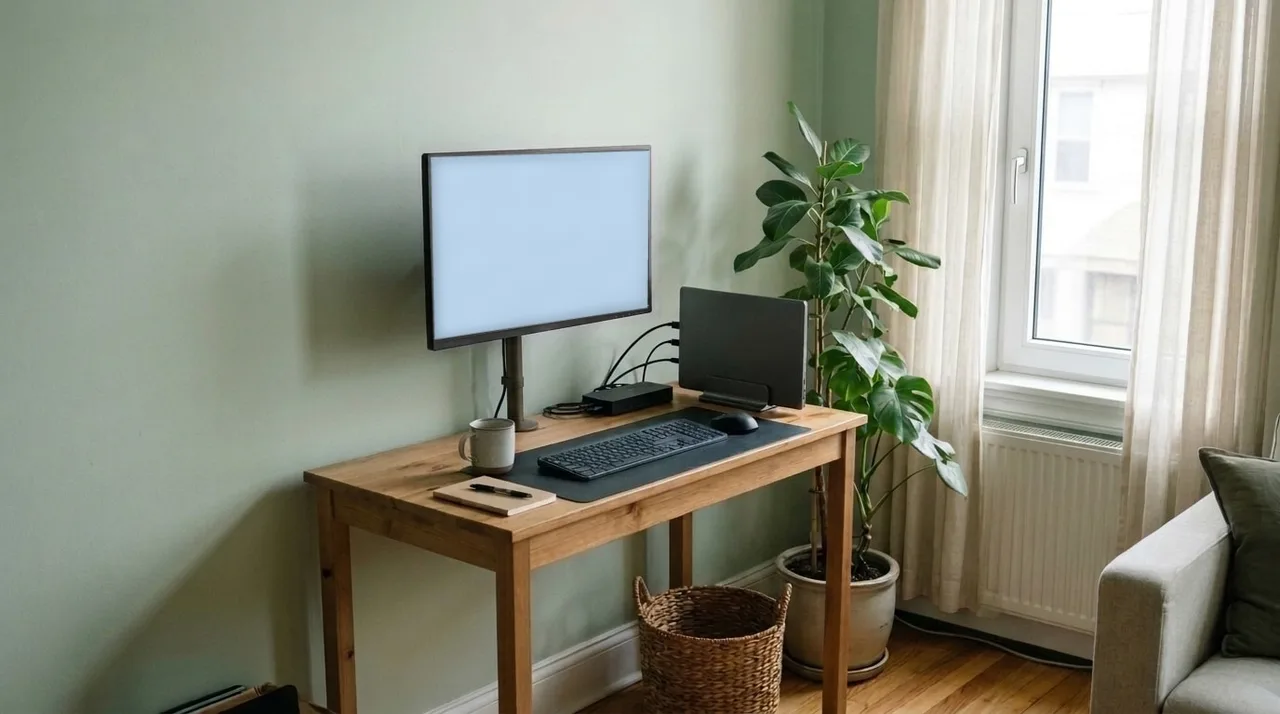
Home office setup with a laptop: monitor, keyboard and charging on one cable
Written on 5 November 2026
In short
A laptop desk at home needs a monitor at eye height, a separate keyboard and mouse, and a way to connect it all without a tangle of cables. A docking station does the connecting: monitor, keyboard, mouse and network cable stay plugged into the dock, and one USB-C or Thunderbolt cable to the laptop brings the lot, including charging.
Contents
What a home office setup with a laptop needs
Working on the laptop screen alone is fine for an hour. For a full working day at home, this is the list to work from.
- One or two monitors, so you are not hunched over a 14-inch screen.
- A full-size keyboard and a mouse, which let you push the laptop back or close it.
- A network cable, if the router or a wall socket is within reach.
- A docking station that ties everything to the laptop through one cable and charges it.
One monitor or two in your home office
A single monitor next to the open laptop already gives you two screens: email on the laptop, the work itself on the monitor. A second monitor helps if you spend the day in spreadsheets, documents side by side or video calls with a shared screen.
Whichever you choose, check that the laptop can drive it. The USB-C port needs to carry video, and the laptop's graphics set how many external displays it supports. Our guide on how to connect two monitors to a laptop covers both points and the Windows settings.
A wired network at your home desk
If video calls freeze on Wi-Fi, a network cable is worth trying: at a fixed desk it is often the steadier connection. If your laptop has no network port of its own, a dock adds one: the HP USB-C Dock G5 and the Dell WD19S have a 1 Gbps port, the HP Thunderbolt 120W G4 a 2.5 Gbps port.
Charging the laptop at your desk
A dock with power delivery charges the laptop over the same cable that carries the screen and the peripherals. The charger that came with the laptop can stay in your bag for the days you work elsewhere.
Check the wattage. The HP USB-C Dock G5 charges at up to 100 W and the Dell WD19S at up to 130 W on a Dell laptop. If your own charger is rated higher than the dock, our guide to a laptop not charging through the docking station explains what happens and what to look for.
Keeping your desk setup tidy
The dock does most of the tidying for you, because every cable runs to it rather than to the laptop. Put the dock behind the monitor or at the back corner of the desk, run the cables down one leg of the desk or along a cable tray, and leave only the one dock cable on the desktop. Moving the laptop then means unplugging a single cable.
Using the laptop with the lid closed and a monitor
With a monitor, keyboard and mouse on the dock, you can close the laptop and stand it to one side. Windows has to be told not to sleep when the lid shuts while plugged in; if the screens go off when you close it, our guide to a docking station not detecting monitors has the setting.
Docking stations for a home office
We sell refurbished business docks from HP, Dell and Lenovo, each tested and with a two-year warranty. For a home desk with a USB-C laptop, the HP USB-C Dock G5 covers it: two DisplayPort outputs and an HDMI output, four USB-A and two USB-C ports for keyboard, mouse and webcam, a network port and 100 W charging. With a Thunderbolt 4 laptop, the HP Thunderbolt 120W G4 does the same over Thunderbolt.
Frequently asked questions
What do I need to use my laptop with a monitor at home?
A monitor, a cable or dock that connects it to a laptop port carrying video, and ideally a separate keyboard and mouse. With a docking station, all of it stays plugged in and the laptop connects with one cable.
Can I use my laptop with the lid closed and an external monitor?
Yes, with a keyboard and mouse connected and Windows set not to sleep when the lid closes while the laptop is plugged in. The laptop then works as if it were a desktop computer.
How should I place my laptop on the desk next to a monitor?
Put the monitor straight in front of you and the laptop to one side, raised on a stand if you use its screen as a second display. If you only work on the monitor, close the laptop and stand it out of the way.
Is a docking station worth it for working from home?
If you work at the same desk most days, yes. It replaces the daily plugging in of a monitor cable, a keyboard, a mouse and a charger with a single cable, and it adds a wired network port if your laptop has none.
Docking stations in this article
About the Author
Curious about the author behind this article?

Angelo van Cleef is a senior developer and IT specialist with over 23 years of experience in IT, focusing on development and marketing. Previously, he worked at large companies on long-term projects that spanned several years. In his spare time, Angelo enjoys fitness, hiking, and exploring new world cuisines.
We value your privacy
You decide which cookies we may use
We and our partners use cookies to keep the site running smoothly, understand how it's used, and show you offers that match your interests. We need your permission for some of these.
- A faster, smoother experience on dsl-tech.nl
- Offers and products that match your interests
- You can change your choice at any time
We never sell your data. Read our Privacy policy for more information.